
Connect Claude
Add Invoa to Claude as a custom connector in claude.ai or Claude Code, pick the company it can reach, and revoke its access when you need to.
Invoa has a connector for Claude. Once it is connected, you can ask Claude in plain language to look up invoices, draft quotations, chase payments and more, and Claude works inside one of your Invoa companies with the permissions you give it.
Connecting takes about two minutes. You need an Invoa login for the company you want to connect.
What your plan allows
| Plan | What Claude can do |
|---|---|
| Free and Core | Look up contacts, items, documents, balances and aged receivables, and prepare contacts and drafts (quotations, invoices, notes, a quotation turned into a draft invoice). You issue them in Invoa. |
| Pro, or a running Pro trial | Everything above, plus sending, recording payments, billing-schedule milestones and, with your approval, issuing, submitting e-invoices and voiding. |
On the Free plan, an owner or admin can start a 14-day Pro trial once from Settings → AI connectors → Start 14-day Pro trial. See Plans, trial and billing.
Your role also matters. Team members with the accountant or viewer role always get read-only access through Claude, whatever the plan. See Approvals and safety.
Connect in claude.ai
The connector address is https://app.invoa.io/mcp. You can also copy it from Settings → AI connectors under Your MCP URL.
- In Invoa, switch to the company you want Claude to work in, using the company switcher at the top of the app. The connection is tied to the company that is active when you click Allow in step 7.
- In claude.ai, click your initials (bottom left) and open Settings → Connectors.
- Click Add custom connector.
- Enter the name Invoa and the URL
https://app.invoa.io/mcp. Leave the OAuth client ID and secret empty; Invoa registers Claude automatically. - Click Add, then Connect.
- Sign in to Invoa in the window that opens.
- On the Connect to Invoa page, check the company name in the line "… is asking to connect to your company in Invoa", review the permissions, and click Allow.
- In a chat, open the + or tools menu and turn on Invoa. Try: "List my overdue invoices."
The connector then works in Claude on the web and in the desktop and mobile apps.
Important: Use the URL exactly as shown. Do not add anything to it, such as ?tenant=…. Sign-in fails if the URL carries extra parameters. You choose the company by switching to it in Invoa before you click Allow.
Connect Claude Code
In a terminal, add the server:
bashclaude mcp add --transport http invoa https://app.invoa.io/mcpStart Claude Code with
claude, type/mcp, choose invoa, then Authenticate.Your browser opens Invoa's sign-in and consent page. Check the company name and click Allow.
Back in the terminal, the server shows as connected and the tools appear with names such as mcp__invoa__list_documents. As in claude.ai, switch to the right company in Invoa (in the same browser) before you click Allow.
Connect ChatGPT
ChatGPT connects to the same Invoa server. You need a paid ChatGPT plan; on Business or Enterprise, your workspace admin may need to allow custom connectors. As with Claude, switch to the right company in Invoa (in your browser) before you click Allow.
The quick way: the plugin directory
Invoa is listed in ChatGPT's plugin directory, so you no longer need developer mode or the custom-server form. Open Invoa in ChatGPT, click Add, then Connect: your browser opens Invoa's sign-in and consent page, you check the company name and click Allow. The rest of this section is for workspaces where the directory is not available.
ChatGPT on the web (custom server)
In chatgpt.com, open Plugins (left sidebar) and click Add → Add custom MCP server. If you don't see that option, turn on developer mode under Settings → Security and login first.
Fill in the form:
- Name: Invoa
- Description: Quotations, invoices, payments and LHDN e-invoices
- Connection: Server URL,
https://app.invoa.io/mcp - Authentication: OAuth. Leave Advanced OAuth settings as they are; Invoa registers ChatGPT automatically.
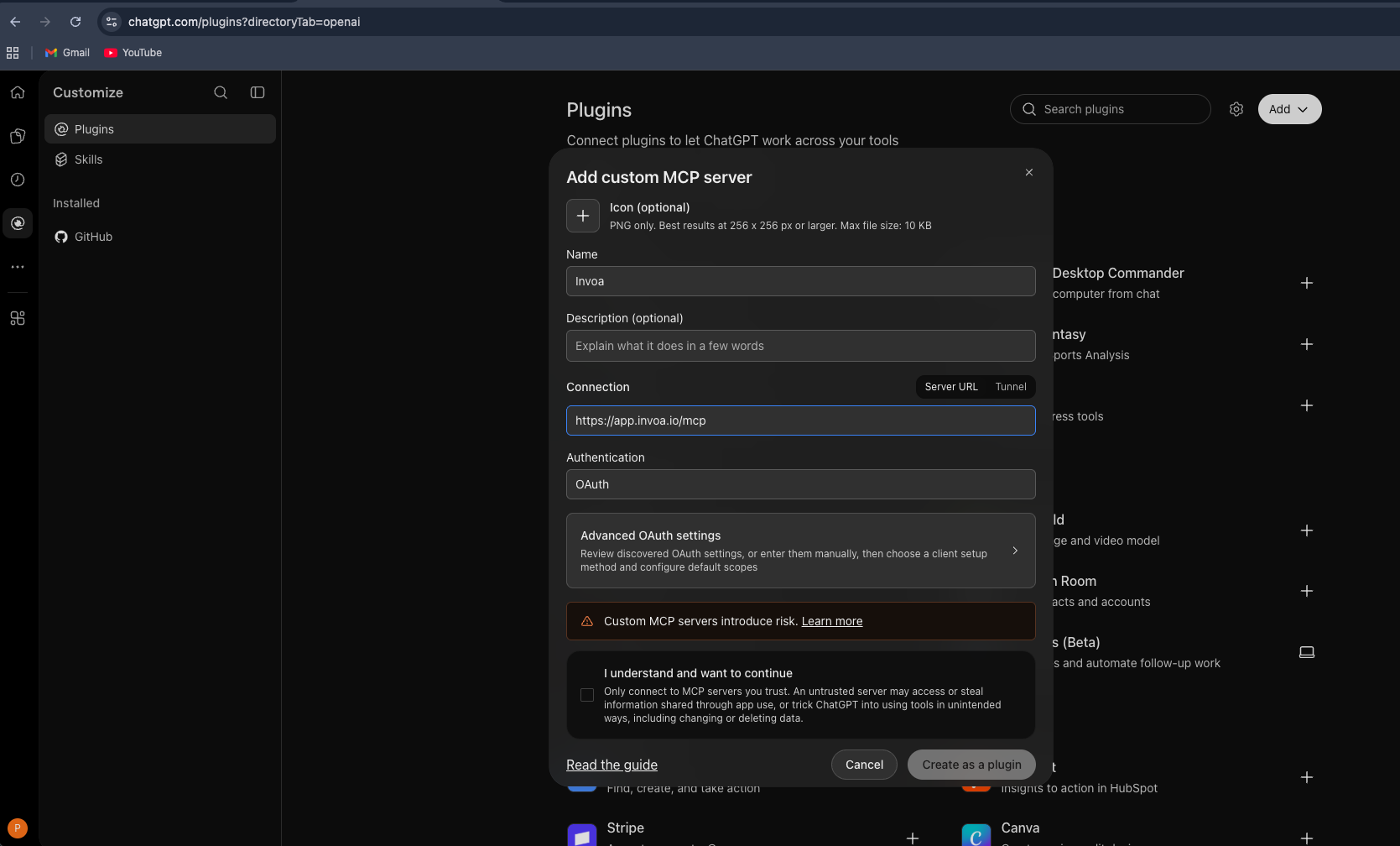
Tick I understand and want to continue (ChatGPT shows this for every custom server) and click Create as a plugin.
Click Continue to Invoa. Sign in if asked, check the company and permissions on the Connect to Invoa page, and click Allow. Invoa now appears under Installed.
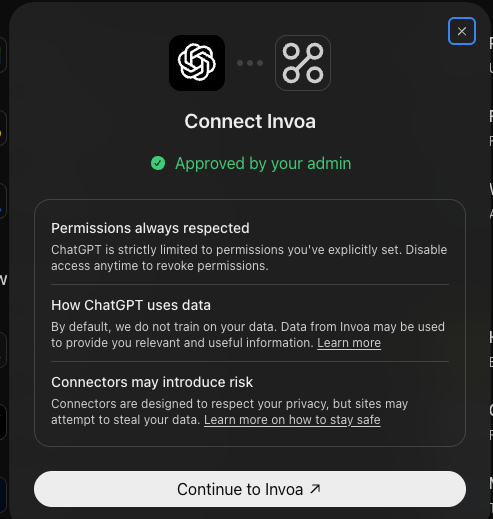
In a new chat, type @Invoa followed by your question, for example "@Invoa who owes me money?"
ChatGPT desktop app
Note: As of October 2026 the ChatGPT desktop app can sign in to Invoa and list its tools, but a known ChatGPT issue can stop its chats from using them ("Invoa's tools aren't available in this chat"). If that happens, use ChatGPT on the web.
In the ChatGPT app, open Plugins and click Add → Add MCP server.
Name it Invoa, choose Streamable HTTP and paste
https://app.invoa.io/mcp. Leave Bearer token env var and both header sections empty, then click Save.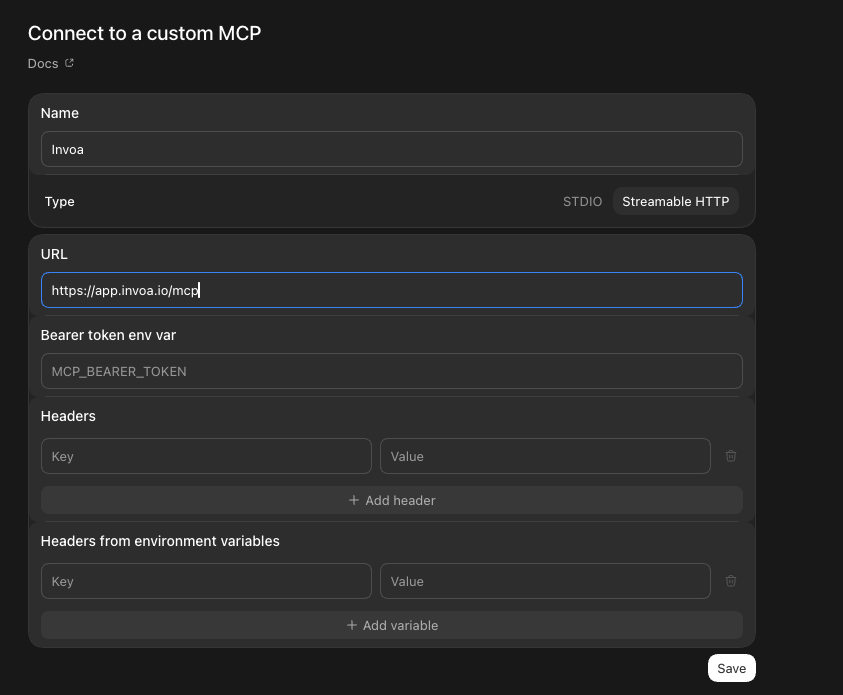
Under MCPs, click Authenticate next to invoa.
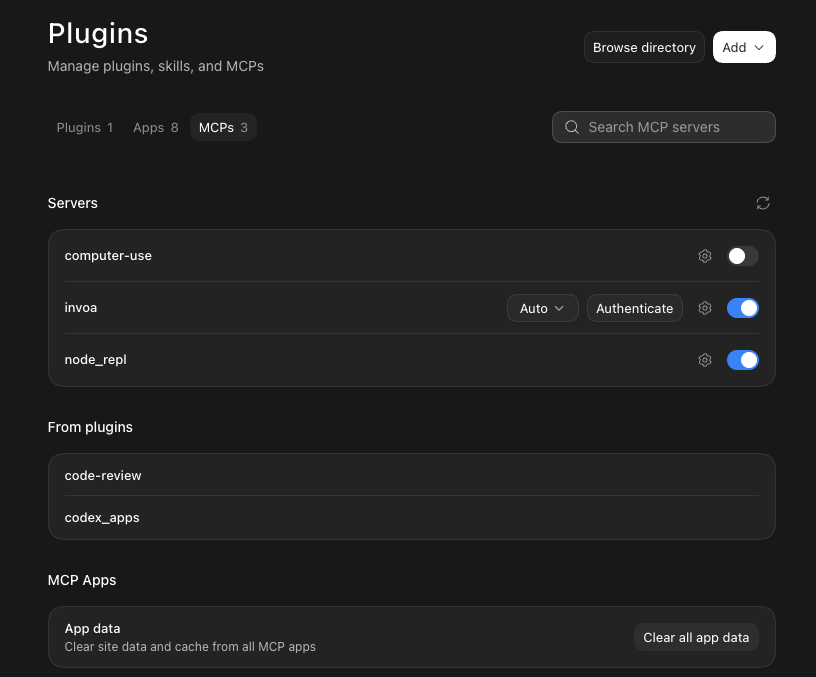
Your browser opens Invoa. Sign in if asked, check the company and permissions on the Connect to Invoa page, and click Allow. When the browser says Authentication complete, close that tab.
Start a new chat and ask, for example, "Using Invoa, who owes me money?"
The desktop app connects through its built-in Codex, so in Invoa it appears as Codex under Connected apps.
ChatGPT asks you to confirm before each action that changes data, and issuing, submitting to LHDN and voiding still wait for your approval in Invoa.
Connect more than one company
Each connection reaches exactly one company. If you look after several companies, for example Lembah Bayu Travel Sdn. Bhd. and Cempaka Studio:
- In Invoa, switch to the second company.
- In Claude, add another custom connector with the same URL and a name that tells them apart, such as Invoa – Cempaka Studio.
- Click Connect and check the company name on the consent page before you click Allow.
Switching companies in Invoa later does not move an existing connection. Each connector keeps working with the company it was connected to.
Permissions on the consent page
The consent page lists the permissions Claude asked for. Allow grants them; Deny cancels the connection.
| Permission shown | Scope | What it covers |
|---|---|---|
| Read contacts, items, documents and receivables | documents:read | All read-only tools. |
| Create and edit draft documents | documents:draft | Drafts, converting quotations, triggering billing milestones. |
| Request issuing and voiding of documents (you approve each one) | documents:issue | Issuing and voiding, through an approval. |
| Send documents by email / WhatsApp link | documents:send | Emailing issued documents to customers. |
| Record payments and confirm payment claims | payments:write | Recording money received and issuing receipts. |
| Request e-Invoice submission to LHDN (you approve each one) | einvoice:submit | Submitting to MyInvois, through an approval. |
| Create and update contacts | contacts:write | Adding and editing customers and suppliers. |
The page may also list sign-in items such as Confirm your identity, See your email address and Stay connected. Write permissions only take effect when your plan and role allow them.
Revoke access
- In Invoa, open Settings → AI connectors.
- Under Connected apps, find the app, click Revoke access and confirm.
This signs the app out straight away for your account, for every company you connected through it. The app can connect again later, and you will see the consent page again. To stop Claude from offering the connector, also remove it in claude.ai under Settings → Connectors, or run claude mcp remove invoa in Claude Code.
Revoked one by mistake? Reconnect it from the app: in claude.ai open Settings → Connectors, open Invoa and click Connect; in ChatGPT open Plugins, open Invoa and connect it again. Click Allow on Invoa's consent page. Nothing in Invoa was deleted.
Connected apps shows only the apps you authorised. Owners, admins and members manage their own connections; an accountant or viewer asks an owner or admin, or removes the connector in Claude or ChatGPT.
Troubleshooting
| What you see | What to do |
|---|---|
| Claude can draft but not issue, send or record payments | Your company is on Free or Core. Start the Pro trial or upgrade. |
| Claude can only read | Your role is accountant or viewer. Ask an owner to change your role. |
| A tool says the connector "was not granted" a scope | Revoke access, then connect again and click Allow on the consent page. |
| Claude is working in the wrong company | Revoke access, switch to the right company in Invoa, then connect again. |
| The consent page says the sign-in link has expired | Go back to Claude and click Connect again. |
| An error says you have no company yet | Finish setting up your company in Invoa first, then connect. |
| A Couldn't connect page with an error code | Remove the connector in Claude or ChatGPT, add it again and reconnect. If it happens again, send the error code to hello@invoa.io. |
| ChatGPT says no Invoa tools are available | Start a new chat after connecting; a chat that was already open does not pick up new tools. |
Related
Something unclear or out of date? Tell us at hello@invoa.io and we'll fix the page.